
Home Office Setup in Sri Lanka: What Actually Makes a Difference
The accessories that genuinely improve working from home in Sri Lanka — a hub, a stand, a proper mouse, and a plan for power cuts — in the order worth buying them.
update Published 5 August 2026
Most home-office advice starts with a desk and a chair. Those matter, but they are furniture — and the accessories that actually change how a working day feels are much cheaper and rarely discussed.
Here is what genuinely helps, roughly in the order worth buying it.
1. A mouse — the cheapest real upgrade
Trackpads are fine for scrolling and slow for everything else. Any external mouse is a meaningful improvement, and it is the least expensive item here.
Two things to decide: 2.4GHz or Bluetooth (a dongle just works anywhere and costs you a port; Bluetooth frees the port but can be slow to wake), and size — a compact travel mouse is fine in a bag and tiring across a full day.
See best wireless mice or the full computer mice range.
2. A stand — but only with a keyboard
A laptop screen sits well below eye level, so you spend the day looking down. That is what causes the neck and upper-back ache people blame on their chair.
A stand fixes the screen height. The catch is that it also lifts the built-in keyboard to an unusable angle, so a stand only makes sense together with an external keyboard and mouse. Buying the stand alone usually makes things worse, not better.
Browse laptop stands.
3. A hub — one cable for the whole desk
Modern laptops have very few ports. A USB-C hub restores them: HDMI for a monitor, USB-A for peripherals, an SD slot, often ethernet.
Two things to check before buying:
- HDMI refresh rate. “4K” frequently means 4K at 30Hz, which looks visibly choppy for desktop work. You want 4K at 60Hz for a comfortable monitor.
- Power pass-through. A hub with USB-C Power Delivery input charges the laptop through the same cable, so arriving at your desk is one plug rather than three.
4. A plan for power cuts
This is the part generic advice misses, and it matters here.
Your laptop has a battery. Your router does not. When the power goes, the laptop keeps running and the internet stops — which is what actually ends the working session.
- A power bank with an AC or DC output can keep a router alive through a typical outage.
- A high-capacity USB-C power bank with Power Delivery can top the laptop back up. Check it supports PD and enough wattage for your machine — see what wattage charger do I need.
- Charge them while the power is on. A flat power bank is decoration.
Browse power banks, or the ranked best power banks and high-capacity power banks.
5. Sound, if you’re on calls
If you take calls all day, your laptop’s built-in mic is picking up the room, the fan and the road outside.
- Earbuds or a headset with a decent mic solve most of it — see best wireless earbuds.
- A desk microphone is a bigger step up, and worth it if you present or record — see best microphones.
6. Wired internet for video calls
For video calls, ethernet is noticeably better than WiFi. It removes the jitter and packet loss that cause frozen video and robotic audio, even when a speed test looks fine.
Most USB-C hubs include an ethernet port, so if you can run a cable to the router it usually costs nothing extra. If you cannot, moving the router matters more than upgrading it — see how to choose a router.
A sensible buying order
- Mouse — cheapest, immediate.
- Keyboard + stand — buy them together or not at all.
- Hub — once you add a monitor.
- Power bank for the router — before the next outage, not during it.
- Headset or mic — if calls are a daily thing.
- Bag — if the laptop travels. See best laptop bags & sleeves.
Related: Student laptop essentials · How to choose a laptop · USB-C cables explained · Travel tech checklist
The home-office kit, in stock now
The desk in the order the article recommends buying it. Prices are live, everything here is in stock, and one order costs one delivery charge however many pieces you take.
-
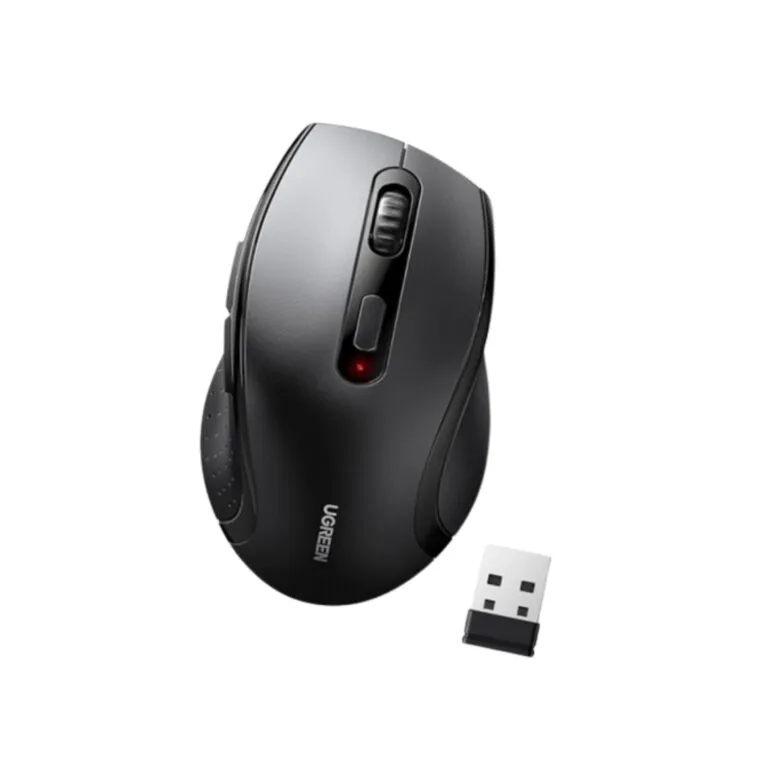 The mouse Ugreen 45012 Wireless Ergonomic Mouse
Ergonomic right-hand shape, silent clicks and adjustable DPI on a 2.4GHz receiver — the cheapest change that makes a laptop feel like a workstation.
LKR 3,999 -
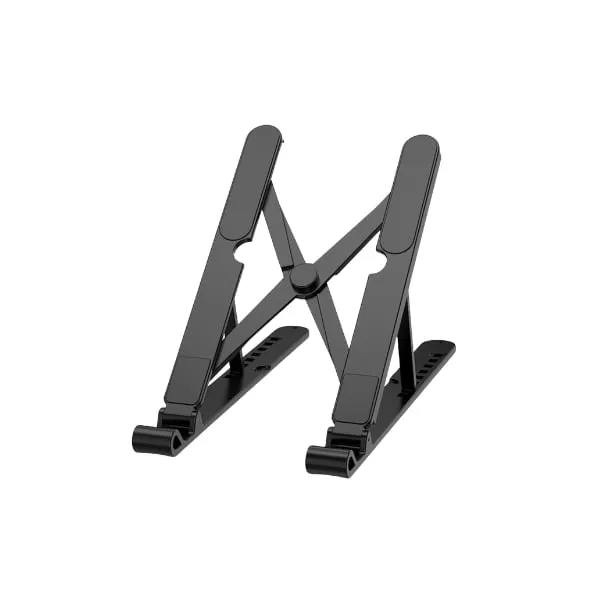 The stand WiWU zm-902 foldable laptop stand
Adjustable angles on a metal frame with anti-slip silicone pads, folding flat for 11–17in laptops — it raises the screen toward eye level, which is the whole point.
LKR 2,199 -
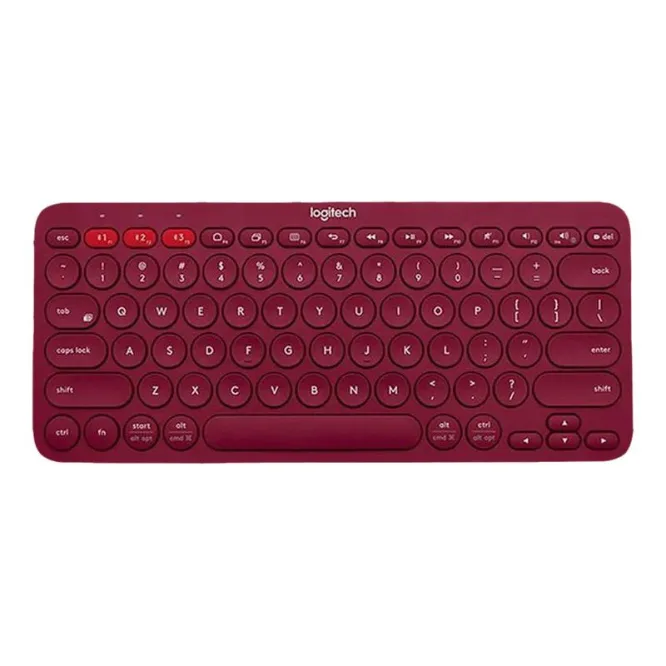 The keyboard the stand requires Logitech K380 Multi Device Bluetooth Keyboard
Once the laptop is raised you cannot type on it. The K380 Easy-Switches between three paired devices over Bluetooth and runs on two AAAs.
LKR 11,999 tuneChoose options -
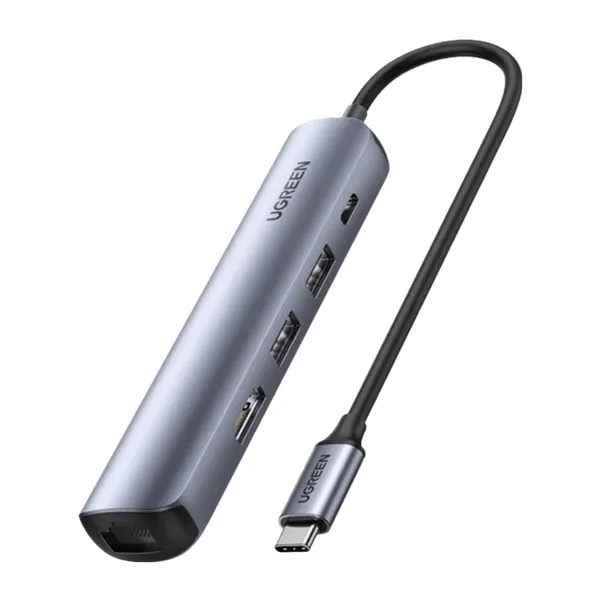 The hub Ugreen 5-in-1 USB-C Hub with 4K HDMI & Gigabit Ethernet
4K@60Hz HDMI, Gigabit Ethernet, USB 3.0 and 100W pass-through charging in one plug — the one-cable desk the article describes.
LKR 11,299 -
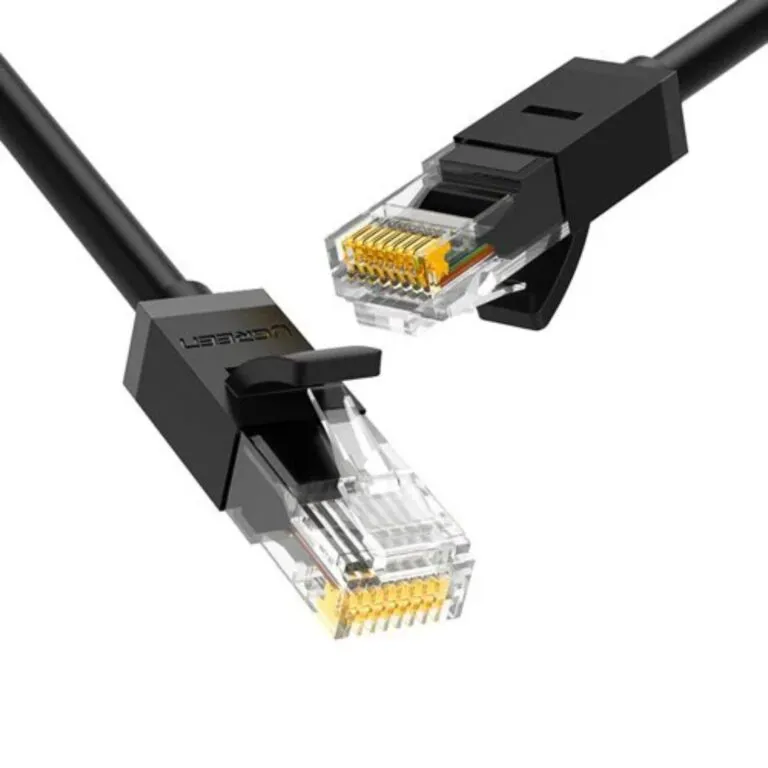 The wired connection Ugreen 20160 CAT 6 Round Ethernet Cable 2m Black
Cat 6, 2m, reinforced RJ45 plugs — 1Gbps into the hub's Ethernet port, which is what stops a video call degrading mid-sentence.
LKR 2,399 -
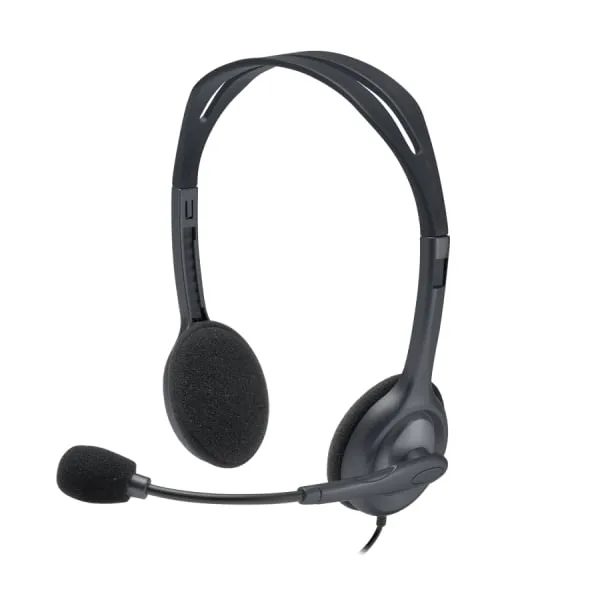 The headset Logitech H111 Stereo Business Headset
A plain stereo business headset for daily calls: your voice reaches people from a fixed boom rather than from wherever the laptop happens to be.
LKR 3,999
The whole kit: LKR 35,894 plus a flat LKR 450 delivery — charged once for the order, not once per item, so all 6 pieces arrive together on one trip and you pay cash at the door.
Ready to buy?
Every product is genuine and warranty-backed, and ordering takes one short form — pay cash when it reaches your door.
Frequently asked questions
What do I need to set up a home office in Sri Lanka? expand_more
Beyond the laptop itself, four things do most of the work: a USB-C hub so one cable connects your monitor and peripherals, a laptop stand to lift the screen to eye level, an external mouse and keyboard, and a plan for power cuts. A power bank that can charge a laptop, or at least keep your router and phone alive, turns an outage from a lost afternoon into an inconvenience.
Do I need a laptop stand? expand_more
If you work at a laptop for more than a couple of hours a day, yes. A laptop screen sits well below eye level, so you spend the day looking down, which is what causes neck and upper-back ache. A stand lifts the screen — but it also puts the built-in keyboard at an unusable angle, so a stand only works paired with an external keyboard and mouse.
What is a USB-C hub for? expand_more
Modern laptops have very few ports, so a hub restores them. One USB-C cable to the hub gives you HDMI for a monitor, USB-A for older peripherals, an SD card slot and often ethernet. Look for power pass-through so the laptop charges through the same cable, which means connecting your whole desk is a single plug.
How do I keep working during a power cut? expand_more
Your laptop already has a battery; your router does not. That is usually what actually stops work. A power bank with an AC or DC output can keep a router running, and a high-capacity USB-C power bank with Power Delivery can top the laptop back up. Charge them when the power is on, not when it goes off.
Is wired internet better than WiFi for working from home? expand_more
For video calls, yes, noticeably. Ethernet removes the jitter and packet loss that cause frozen video and robotic audio, even when a speed test looks fine on WiFi. Most USB-C hubs include an ethernet port, so it usually costs nothing extra if you can run a cable to the router.
What is the cheapest upgrade for working from home? expand_more
A proper mouse. Trackpads are fine for browsing and slow for real work, and an external mouse is the least expensive thing on this list. After that, a stand plus keyboard for posture, then the hub.